Getting Started
This guide walks a director or company admin through their first half hour in MusiCal: signing in, finding your way around, setting up the company, and creating your first production.
What MusiCal is
MusiCal is production-planning software for theatre companies — schools, community theatres, and professional companies — built around the way real shows actually run. Auditions, casting, conflicts, rehearsal calendars, attendance, tech, the program. Everything that lives on a clipboard at intermission, in one place that everyone on the company can see.
The shape of it: a company owns one or more productions. A production has a cast, a production team (staff and crew), a rehearsal schedule, published calendars (live subscriptions and printable PDFs) for the people called to each rehearsal, and an audition flow if you are casting from scratch.
Signing in
Sign in at app.musicalendars.com with Google or Microsoft — there is no separate MusiCal password. Use the email address your company knows you by; that address is how MusiCal connects you to your company and productions.
Finding your way around
The sidebar is your map. As a director or company admin you'll see:
- Dashboard — your home page. "Recent Productions" lists the shows you've actually opened, most recent first.
- Productions — every production your company runs, with a New Production button.
- Company section — Users & Invites (who has access), Company Settings (name, logo, time zone, custom rehearsal types), and Company Staff (your company-wide roster of staff people that carries across shows).
- Profile — your own account details.
On a computer, click Hide at the bottom of the sidebar to hide it, for example in split screen. Click the arrow in the top-right corner to bring it back. A reload shows the sidebar again.
Two help surfaces are always available: the 📖 Help & Docs button at the bottom of the sidebar opens this guide inside the app, and the Ask tab in that same drawer is a chatbot that can answer questions about your own productions.
Step 1 — Company basics
Open Company Settings and check the essentials: company name, logo, state, and time zone. Every rehearsal time you enter is interpreted in your company's time zone, and your logo appears on audition forms and other branded surfaces.
If your company uses rehearsal categories beyond the built-in ones (say, "Sitzprobe" or "Fight Call"), add them under Custom Rehearsal Types — they'll appear in the type picker whenever you schedule a rehearsal.
Step 2 — Your people
Two different lists, two different jobs:
- Company Staff is your company-wide roster — the directors, music directors, stage managers, and designers who work across your seasons. Add a person with their name, email, division, and role title. If their email already belongs to a MusiCal account they link automatically; otherwise you can invite them.
- Users & Invites shows every account with access to your company and lets you send or resend invitations.
Cast and one-show crew are added later, per production — you don't need them here.
Step 3 — Create your first production
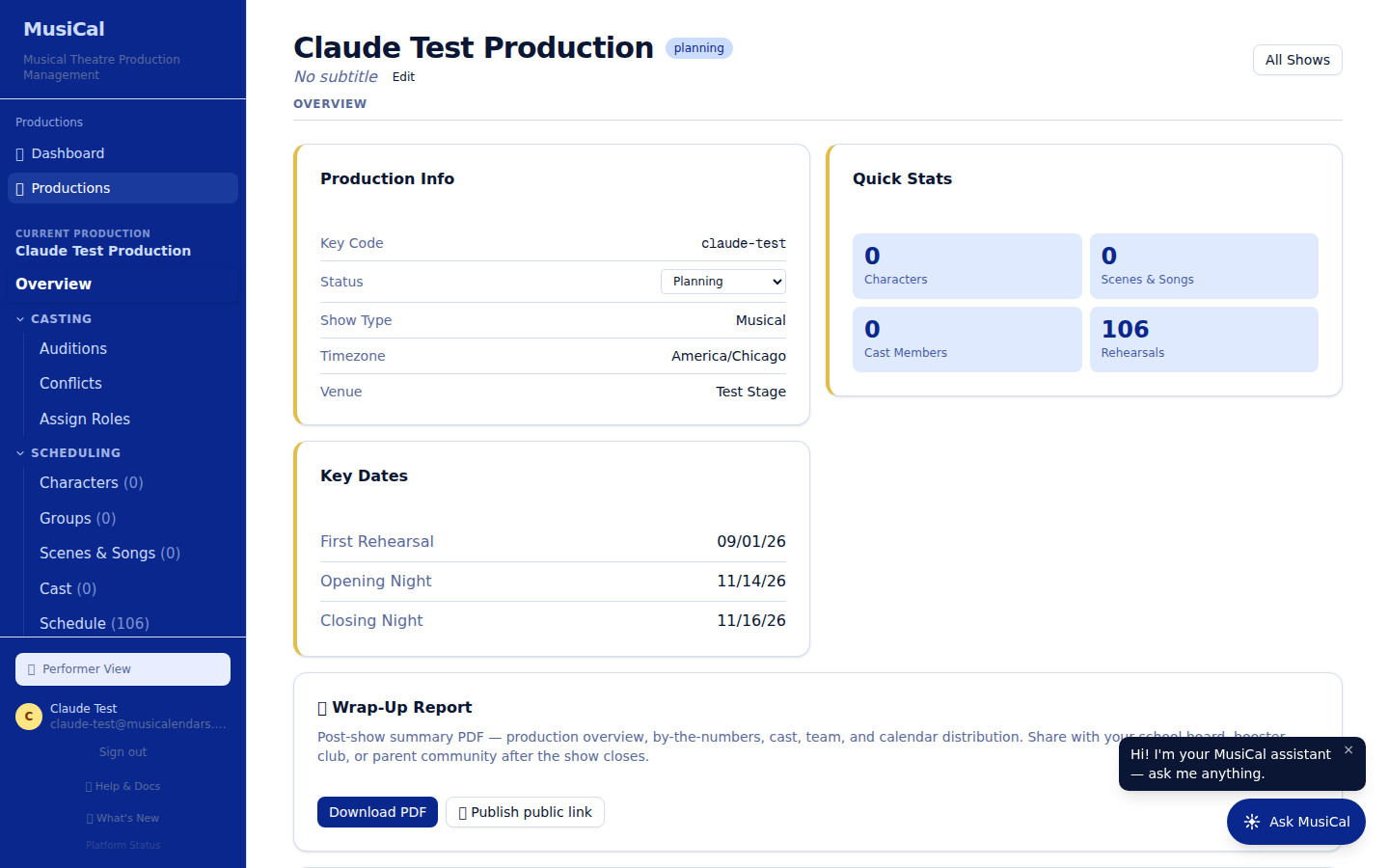
From the dashboard or the Productions page, click New Production. You'll give the show a title, a key code (a short URL slug used on public links like the audition form — MusiCal suggests one from the title), your time zone, and the Type of Production — Adult Production, Adult & Youth Production, or Youth Production. The type is required, and it shows on the show's card on your Dashboard and Productions page. When you create it, you land on the production's Overview page, and the production's own sidebar section appears with everything grouped: Casting, Scheduling, Production Resources, Tech, and Team.
What to do next
- Casting from auditions? Read Auditions next — the audition form link doubles as the performer's invitation to MusiCal.
- Already have your cast? Open the production's Cast tab, add your performers, and use Invite Cast to Platform to get them their accounts. Then skip ahead to Running a Show.
One thing worth knowing early: performers see an empty schedule until you publish the calendar from the production's Publish Calendar tab. Building the schedule and publishing it are separate steps, so you can draft freely.
Either way, Running a Show is the central reference for the day-to-day work of getting from first rehearsal to closing night.