Digital Playbill
The playbill is your production's program — who is in the show, who made it, and what audiences want to know on opening night. MusiCal builds it from your cast list and production team, and your audience reads it from a phone in the lobby.
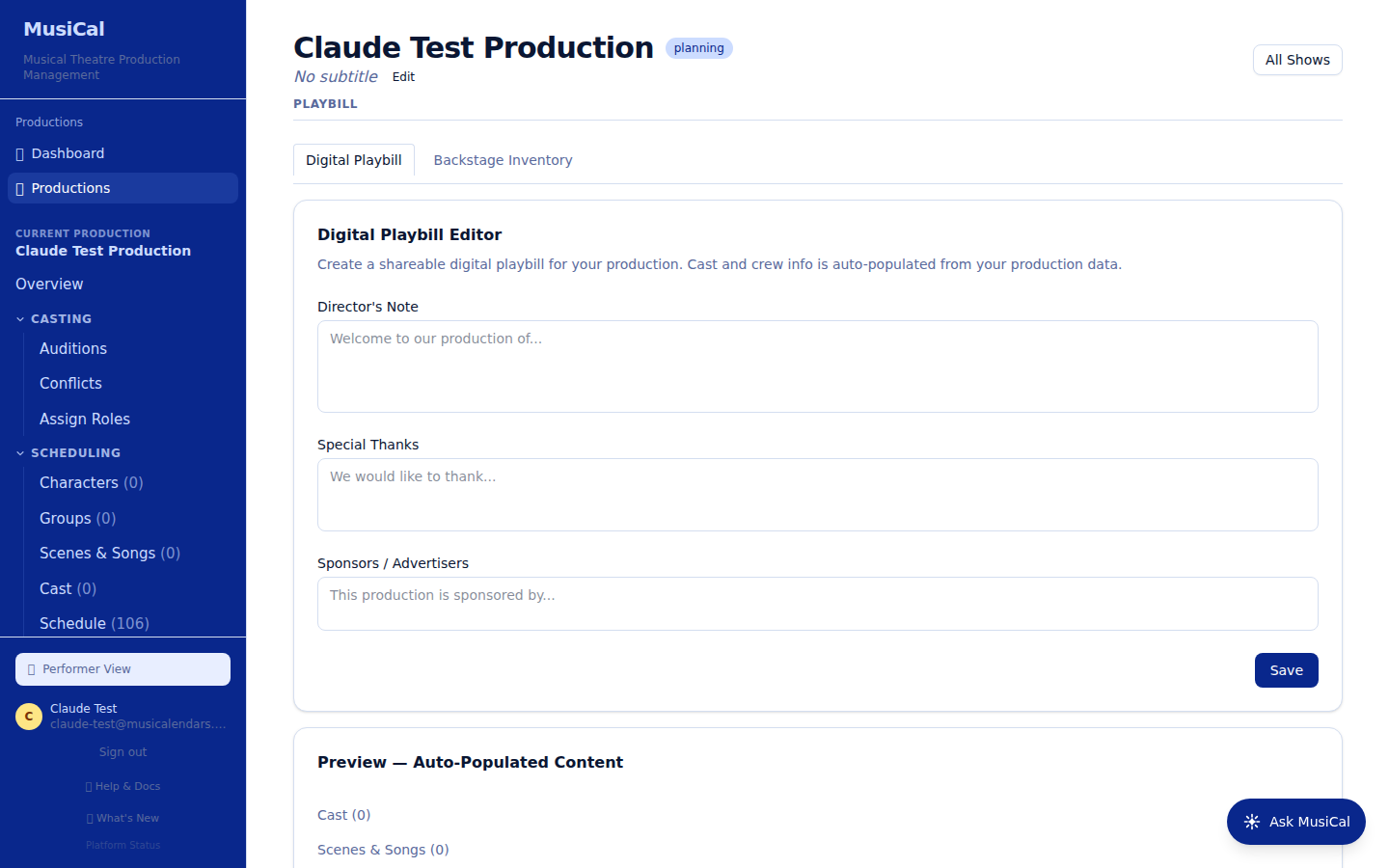
What the playbill includes
The playbill draws from what's already in the production: the show's title block, the cast list (with understudies tagged), the production team by division, the song list from Scenes & Songs (entries marked "Dialogue Only" stay out of it), cast bios, and your acknowledgments. You edit and publish it from the production's Playbill tab.
Editing and publishing the playbill is open to company admins and to the heads of the direction, production, and technical divisions — so the person actually assembling the program doesn't need to borrow an admin.
Collecting cast bios
Chasing bios by email is the worst job in theatre, so MusiCal does it for you. On the Playbill tab, click Collect Cast Bios via MusiCal: set a word limit, write instructions, and pick a due date and time. Then:
- Each performer gets a Cast Bio box on their own page for the show, with your instructions, a word counter that enforces your limit, and — in the last week before the due date — a countdown and a red outline.
- They can save drafts, and submit when ready. Once submitted, they can't change it, and it lands on your Playbill tab.
- You can edit a submitted bio for the program; the performer still sees their original on their side, so nobody feels their words were altered behind their back.
- The due date isn't a cut-off — late bios still come through.
Next to the button you'll see how many of your cast have submitted.
The public playbill link
Every production has a public playbill URL — app.musicalendars.com/playbill/<your-key-code>. It's publicly readable, no account required, and it's responsive — designed to be read on a phone.
Common ways to put it in front of your audience: a QR code in a slim printed program, lobby signage, or a pre-show email to ticket holders. The page reflects your latest published version, so a last-minute cast change makes it to the lobby.